Troubleshooting Penfield
Use this guide to diagnose and resolve connection issues with Penfield.
Step 1: Verify Penfield Is Connected
Open the chat input menu in Claude and check that Penfield appears with the toggle enabled.
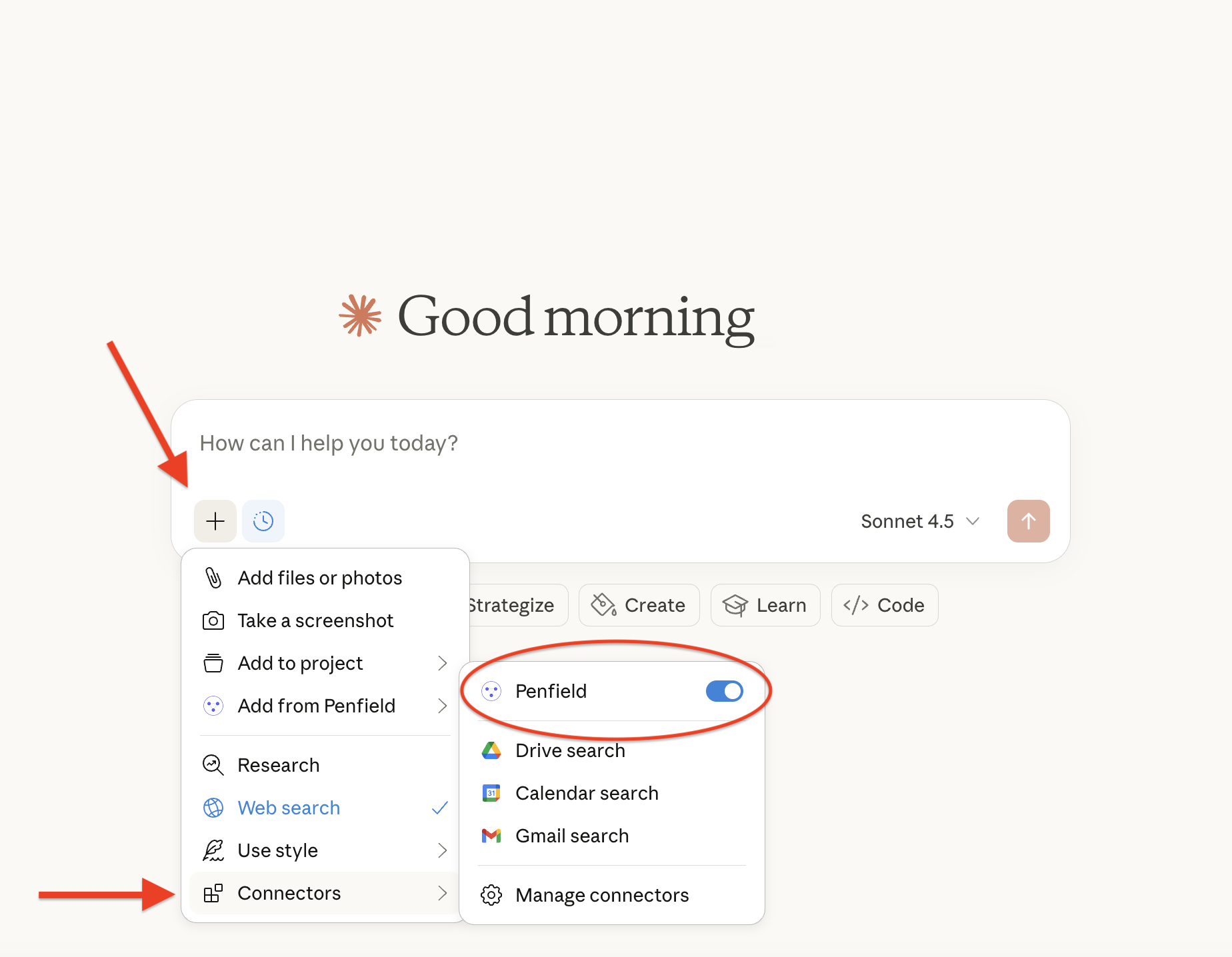
If Penfield appears and is enabled, your connection is working. Try typing "Penfield Awaken" in a new chat to test.
Step 2: Reconnect via Manage Connectors
If Penfield is missing from the menu, shows as unavailable, is disabled but cannot be re-enabled or otherwise continues to malfunction, click Manage connectors.
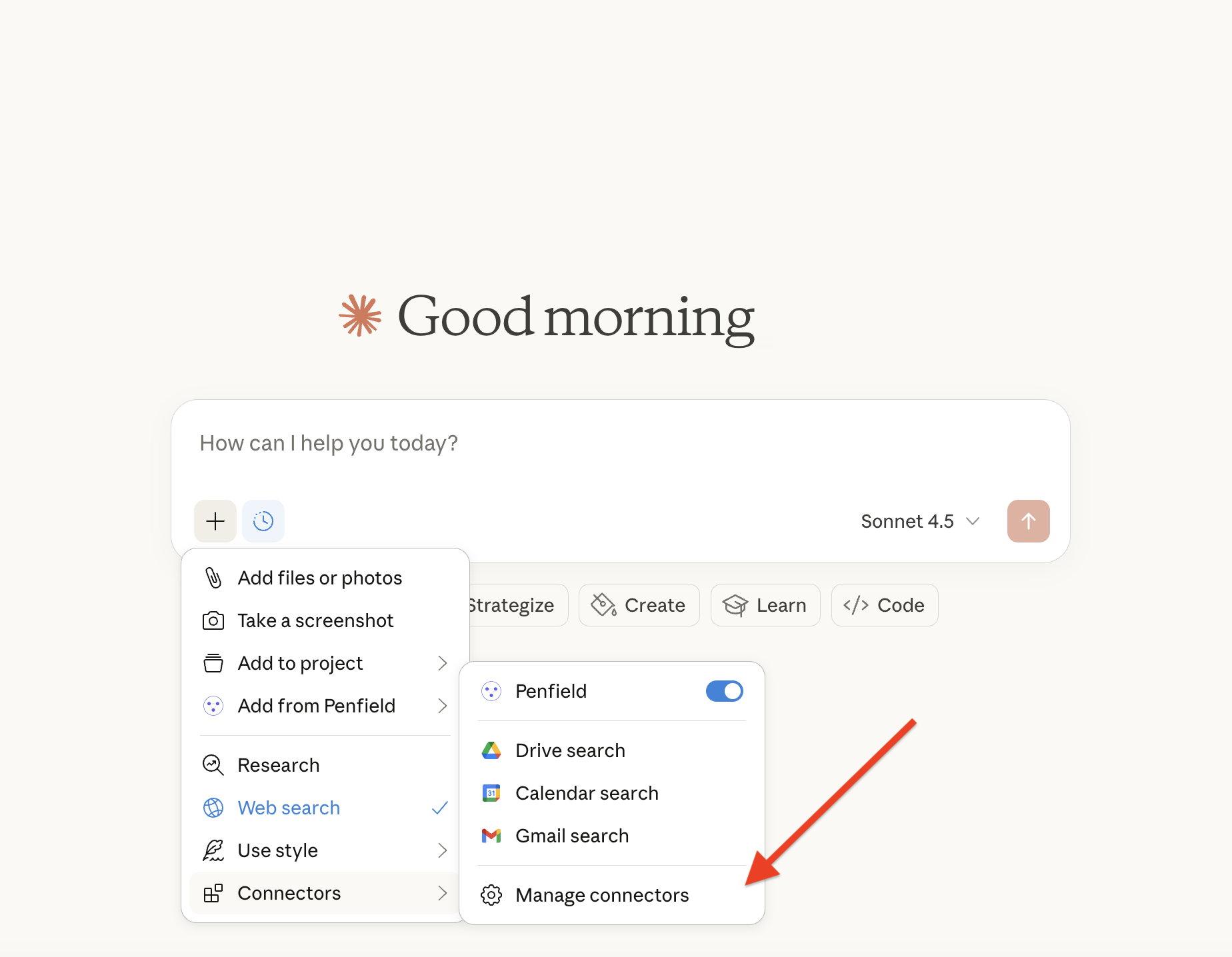
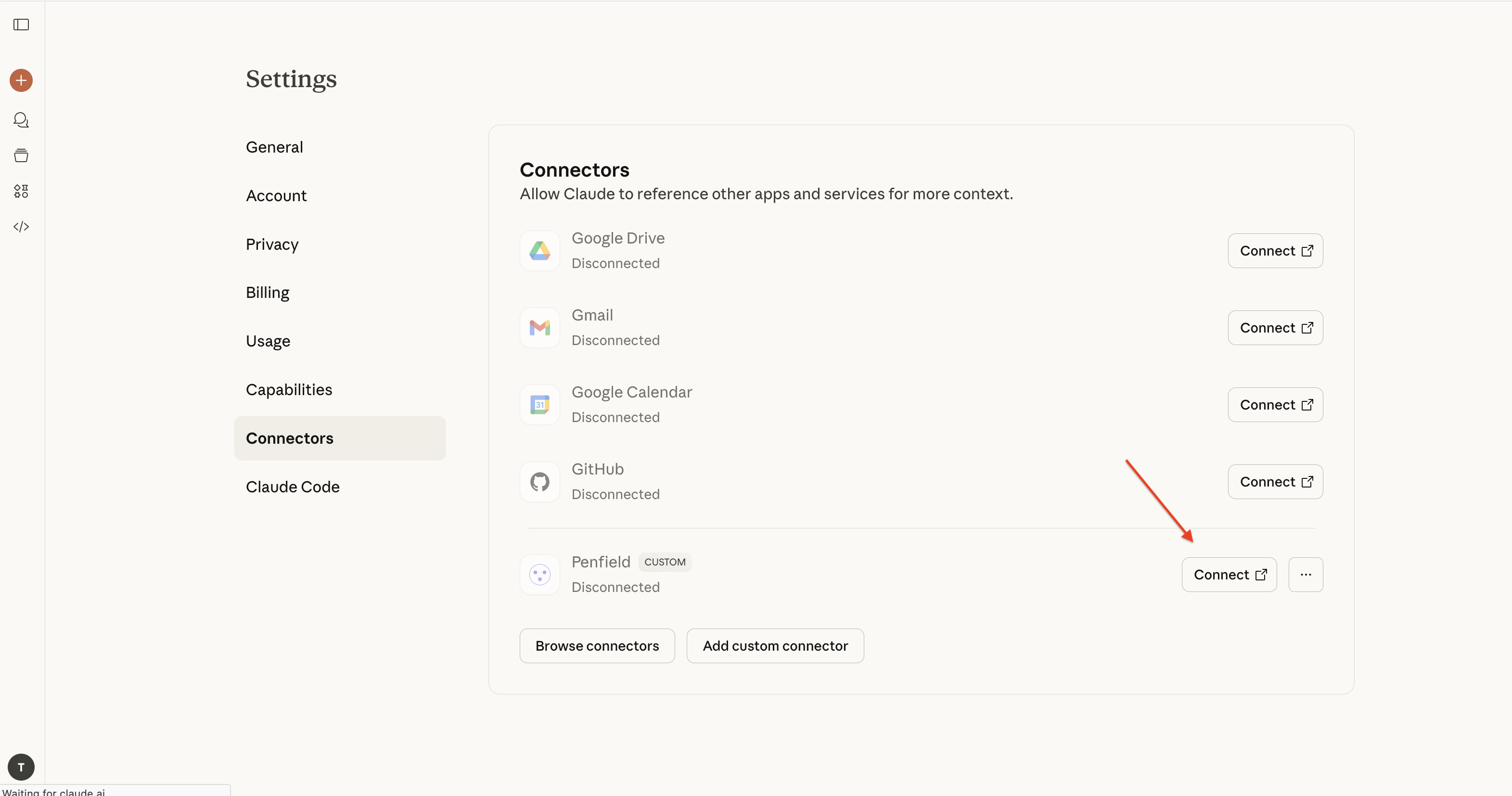
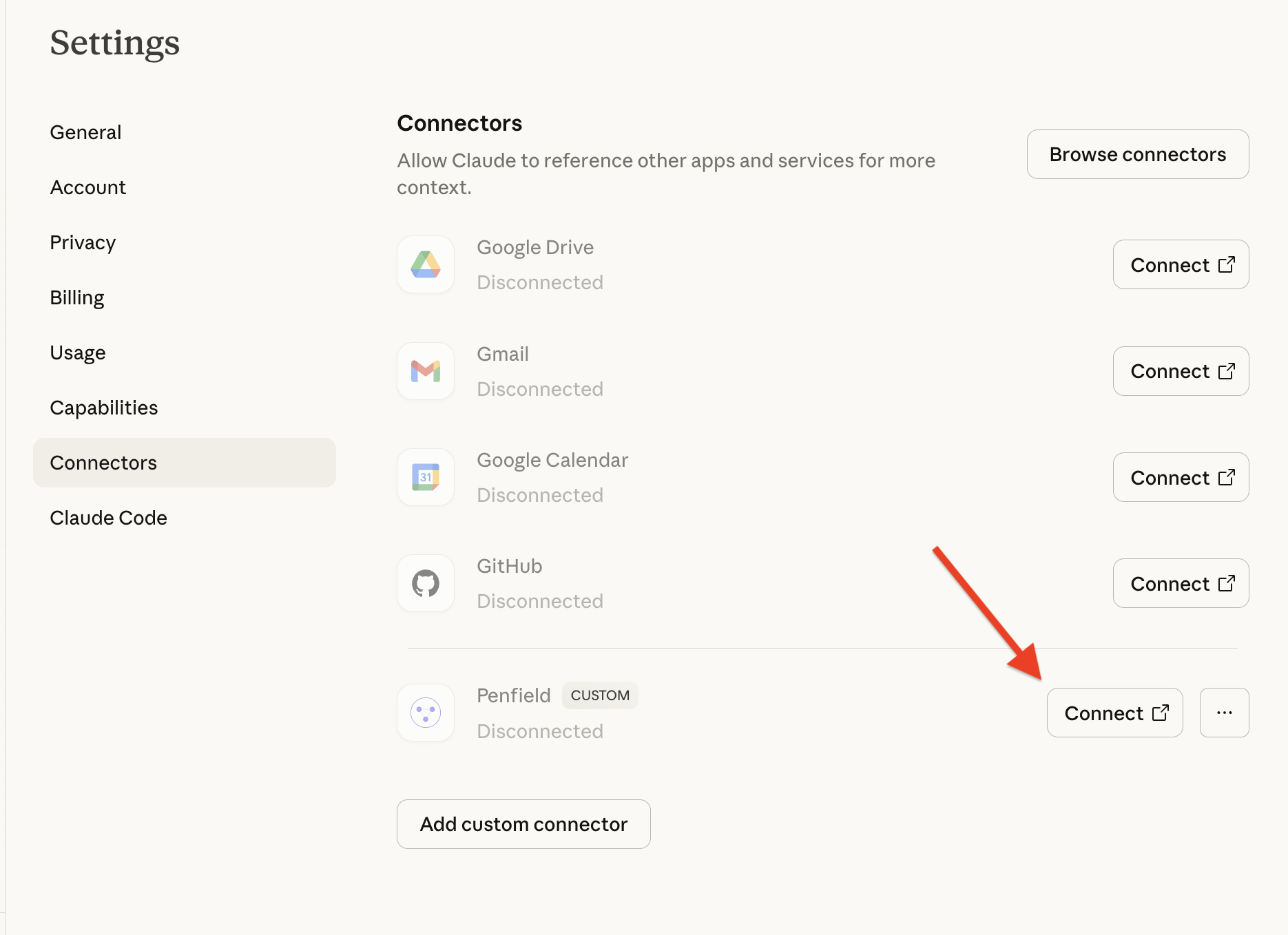
In Settings > Connectors, locate Penfield, if Penfield is disconnected, click Connect.
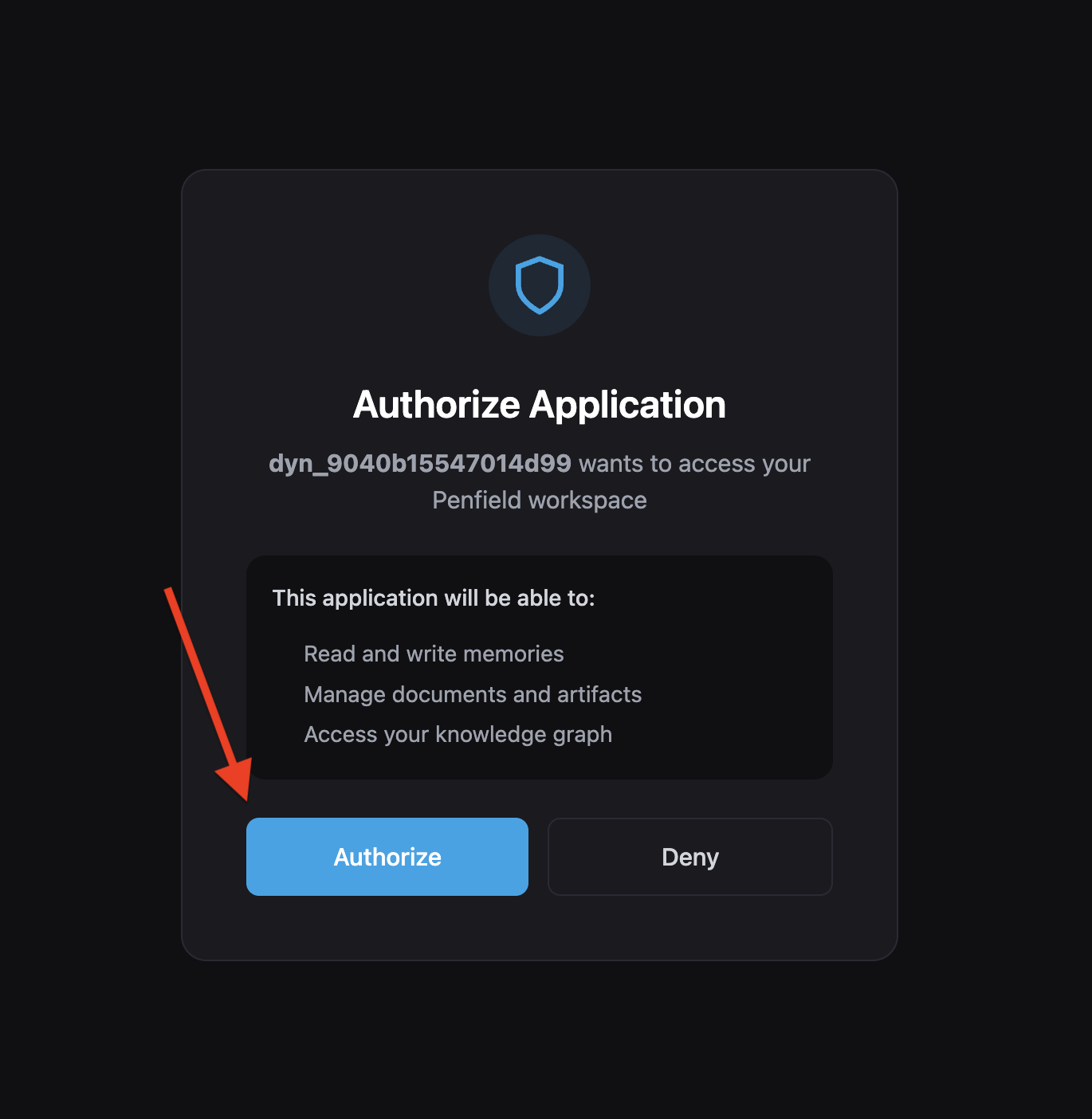
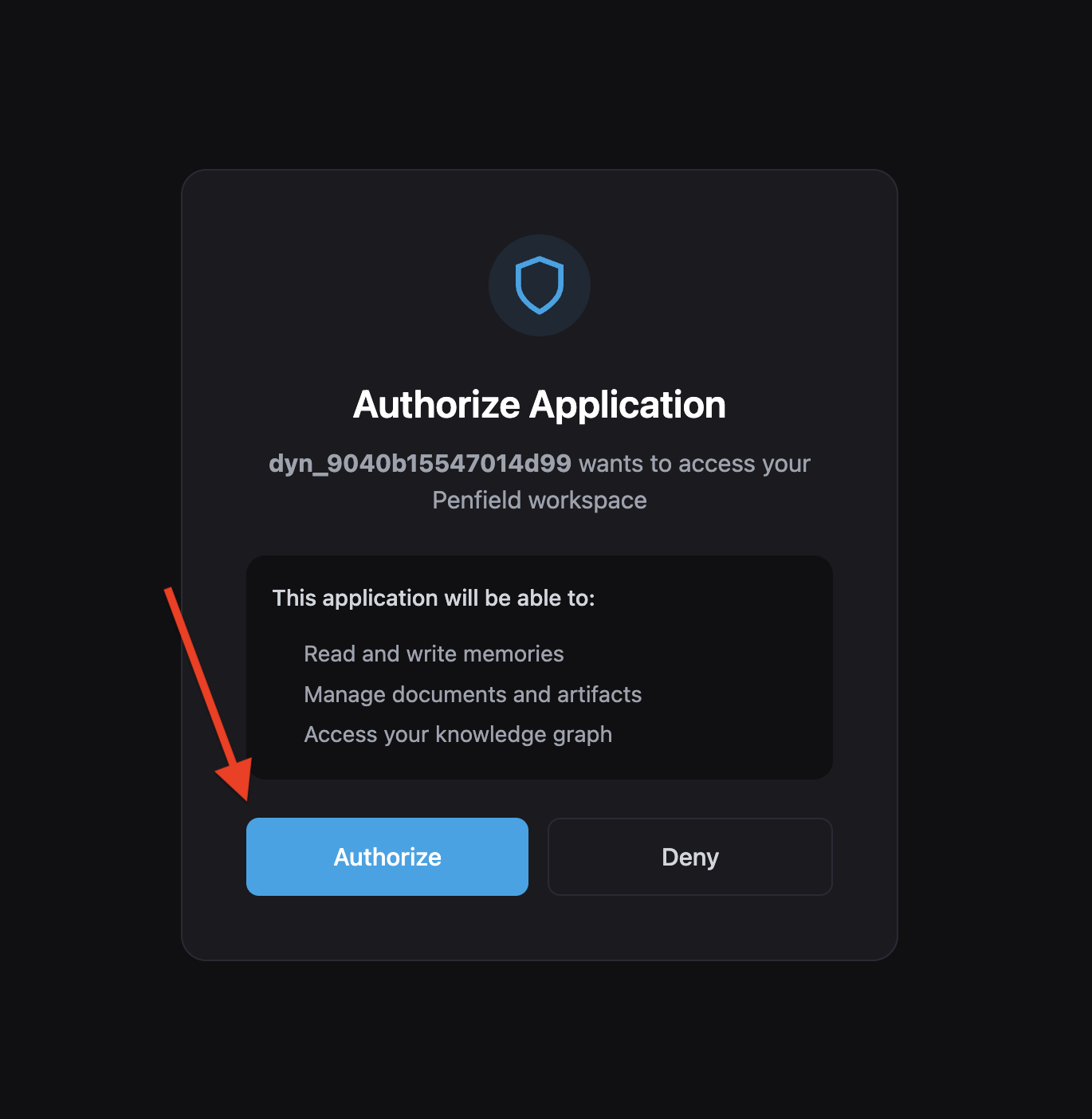
When prompted, click Authorize to reconnect your Penfield account.
Step 3: Disconnect and Reconnect
If Penfield appears connected but isn't functioning properly, try disconnecting and reconnecting:
- Go to Settings > Connectors
- Click the menu button (⋯) next to Penfield
- Select Disconnect
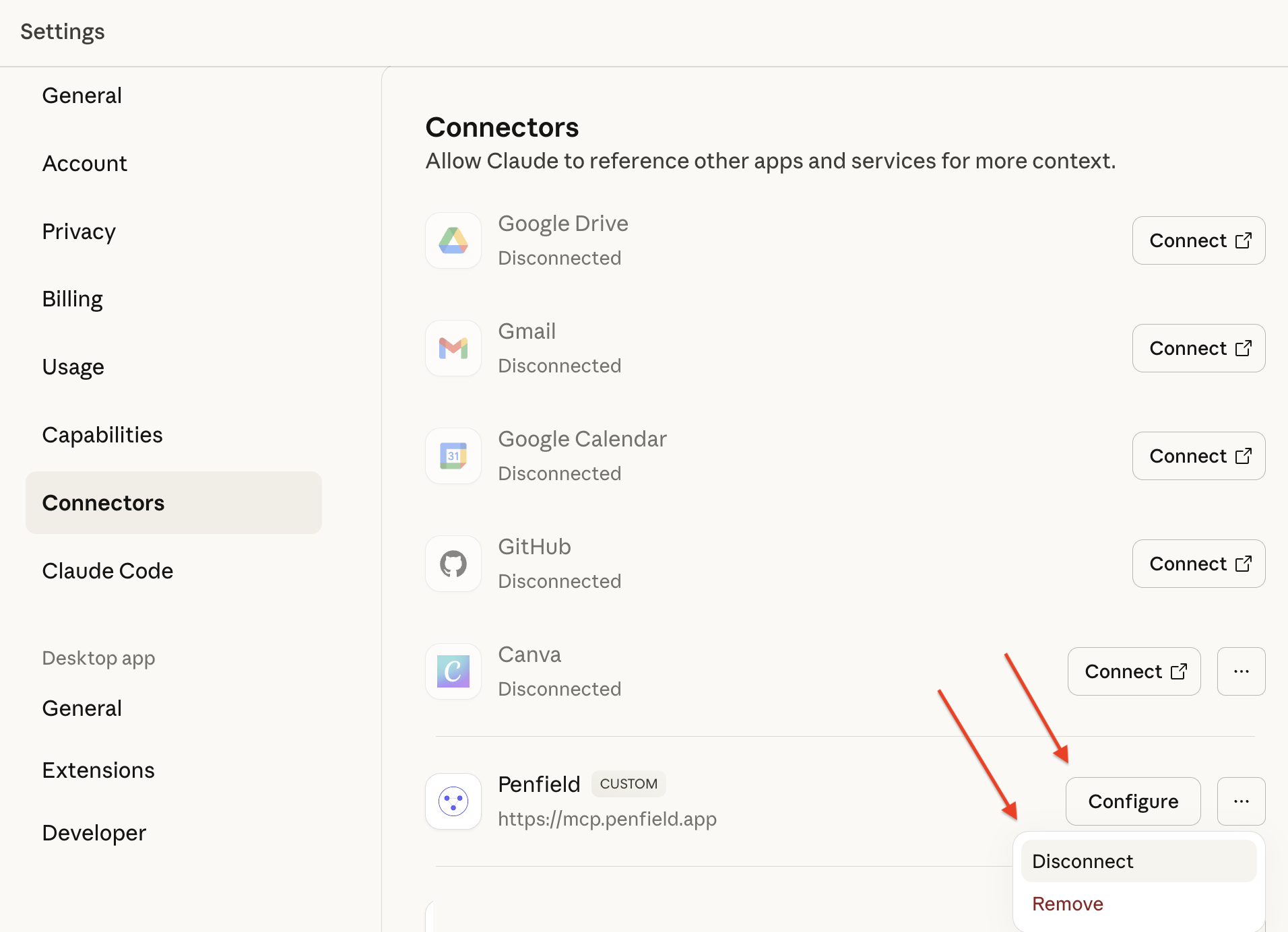
- After disconnecting, click Connect to re-establish the connection
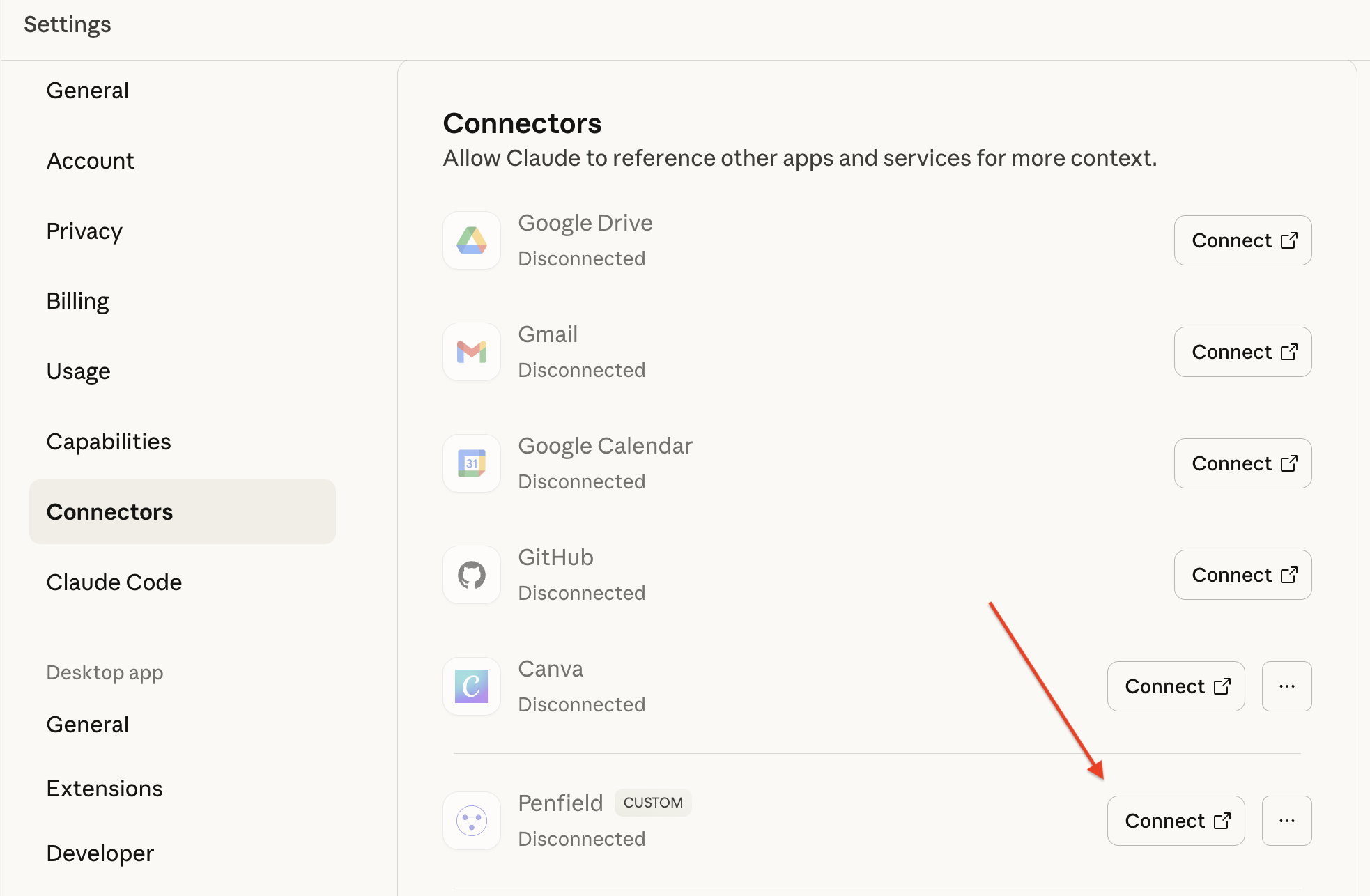
Step 4: Remove and Reinstall
If reconnecting doesn't resolve the issue, remove and reinstall the Penfield connector:
Remove the existing connector
- Go to Settings > Connectors
- Click the menu button (⋯) next to Penfield
- Select Disconnect
- Select Remove
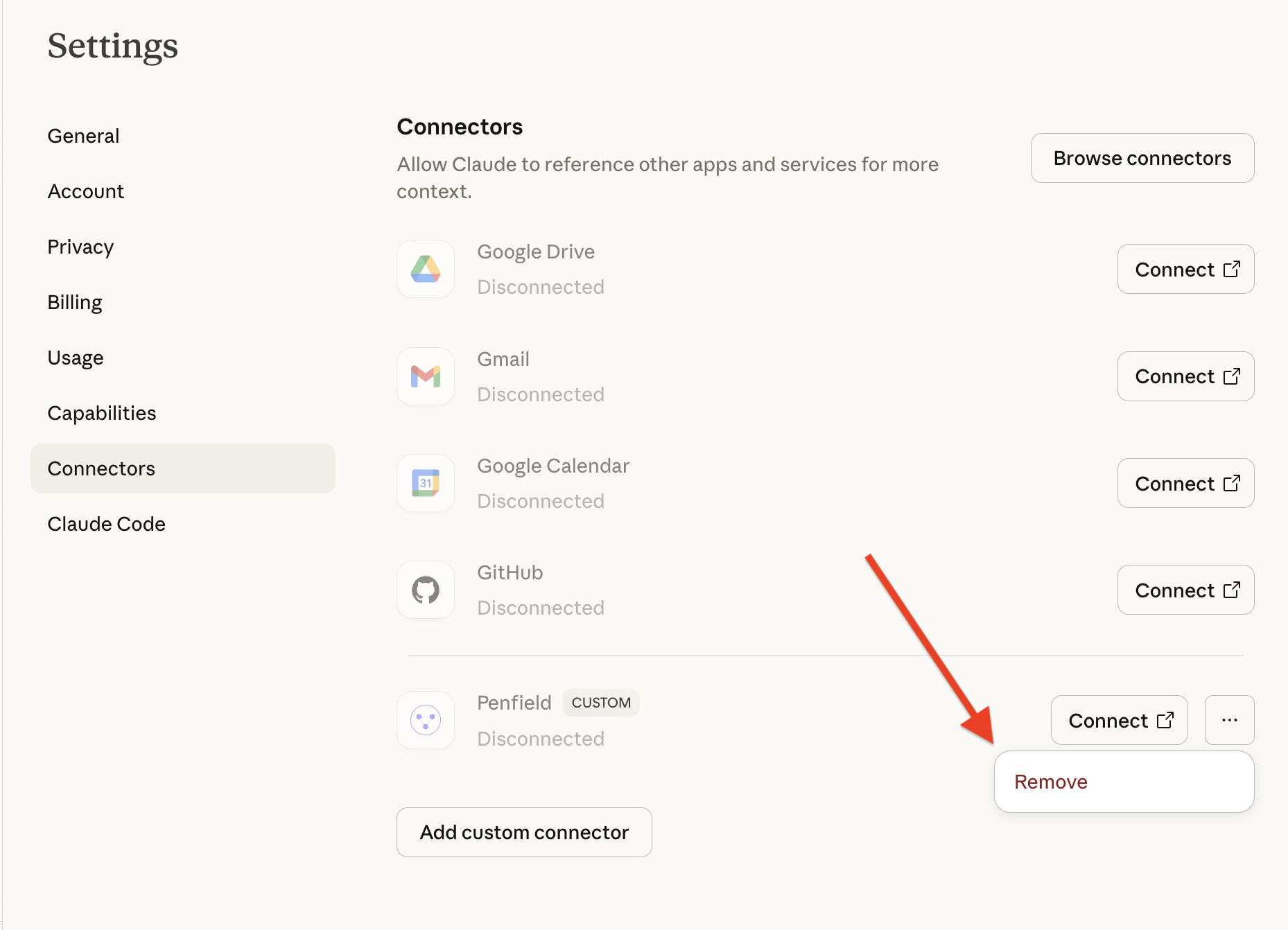
Add the connector again
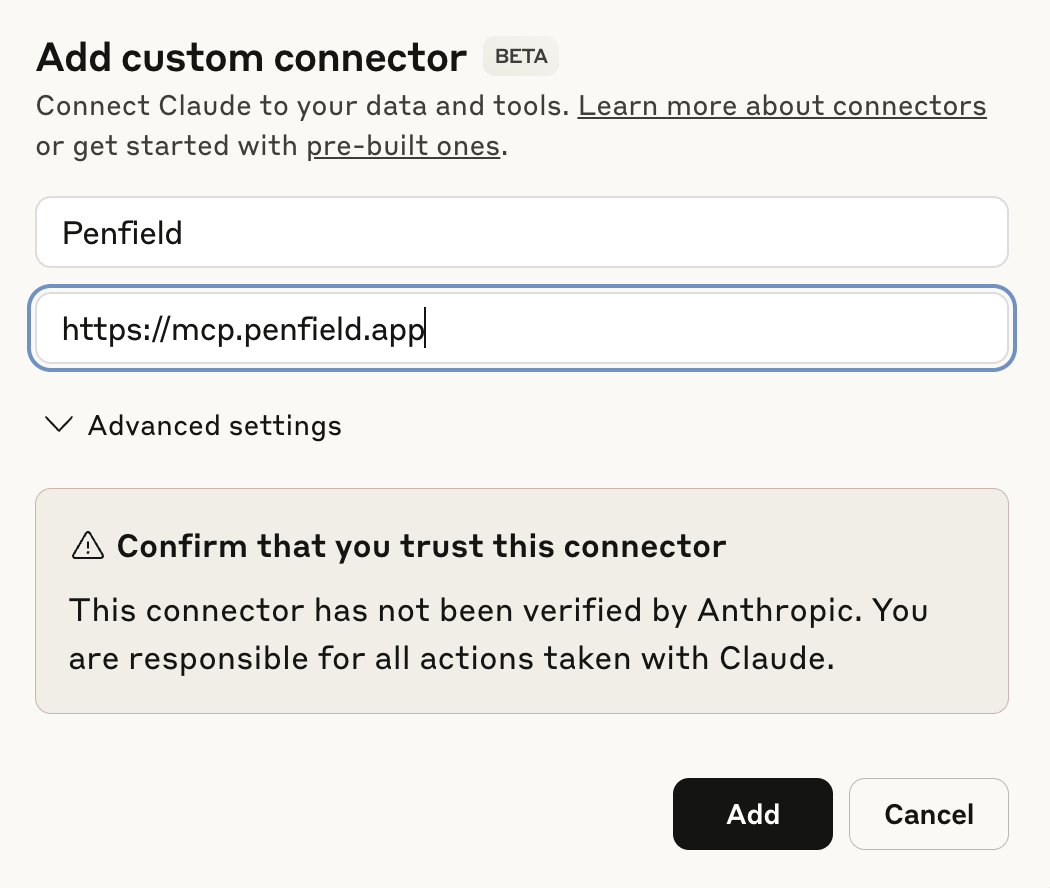
- Click Add custom connector
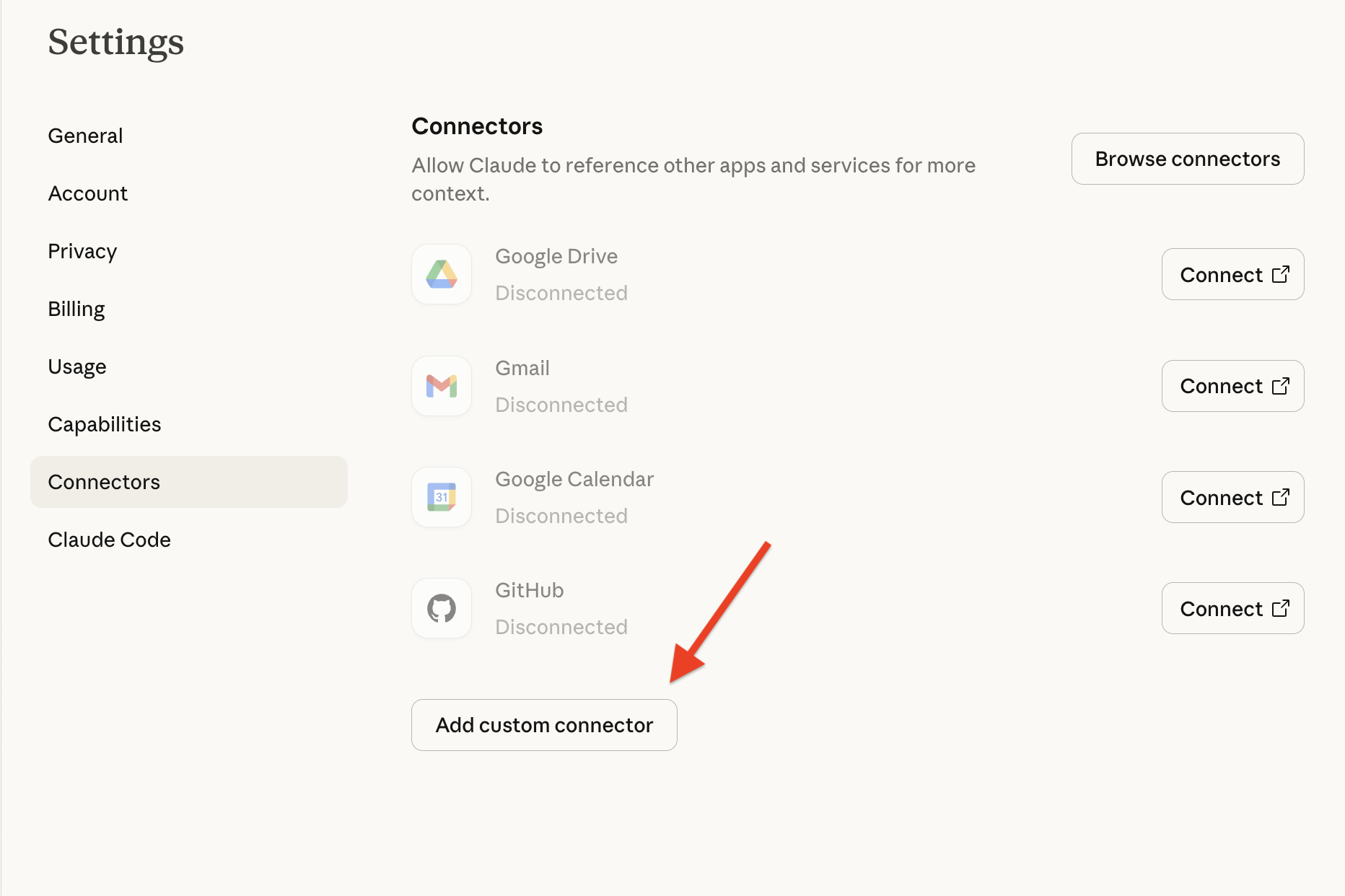
- In the dialog, enter the connector details:
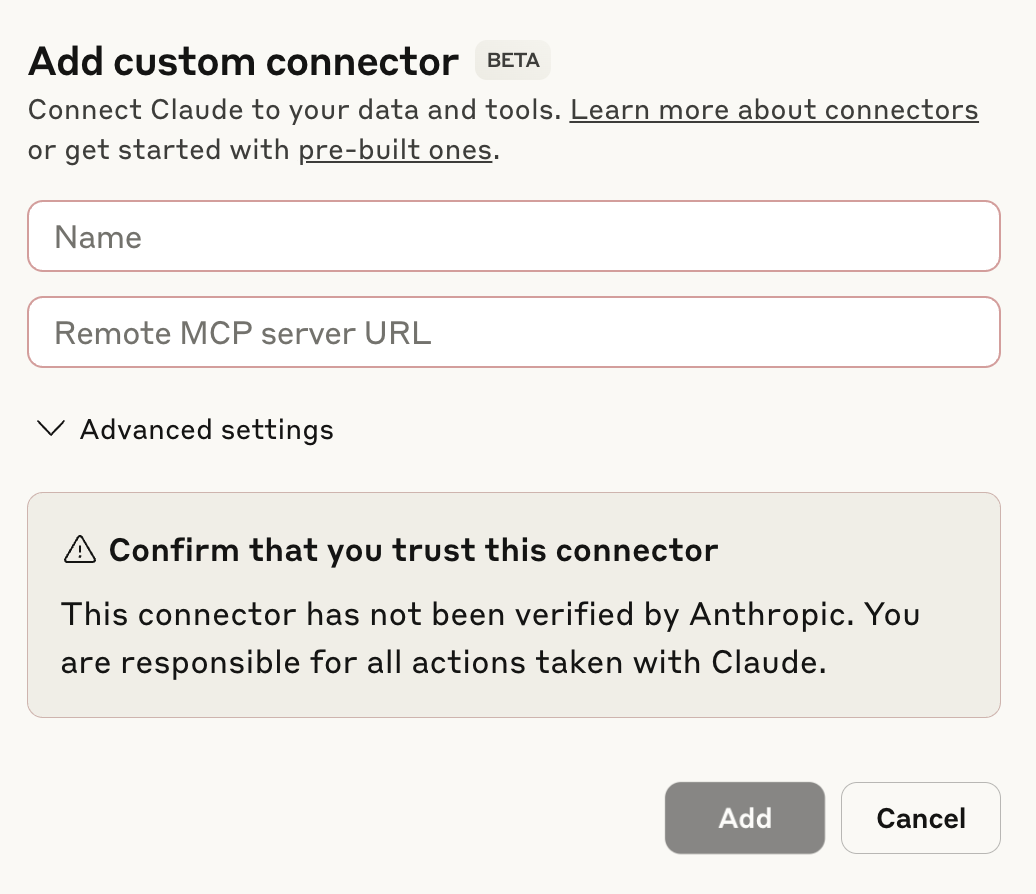
| Field | Value |
|---|---|
| Name | Penfield |
| Remote MCP server URL | https://mcp.penfield.app |
- Click Add
Connect and authorize
- Click Connect next to the newly added Penfield connector
- Click Authorize to grant Penfield access to your workspace
Still Having Issues?
Contact [email protected] for additional assistance.