ChatGPT Setup
Connect Penfield to ChatGPT to enable persistent memory and personality features in your ChatGPT conversations.
Prerequisites
- A Penfield account (sign up here if you haven't already)
- A ChatGPT account (Free or Plus)
Step 1: Open ChatGPT Settings
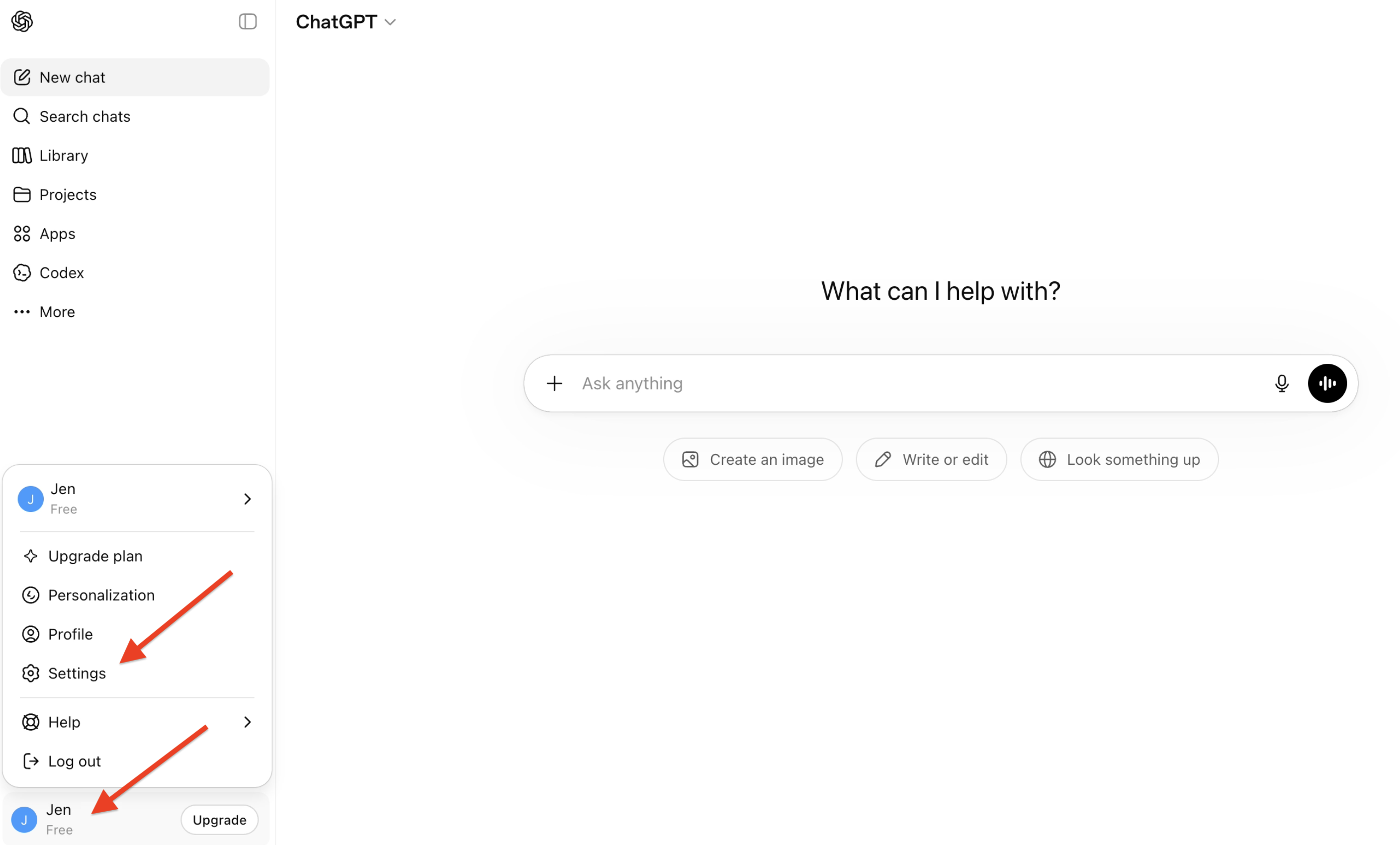
Click your name in the bottom-left corner of ChatGPT, then click Settings.
Step 2: Navigate to Apps
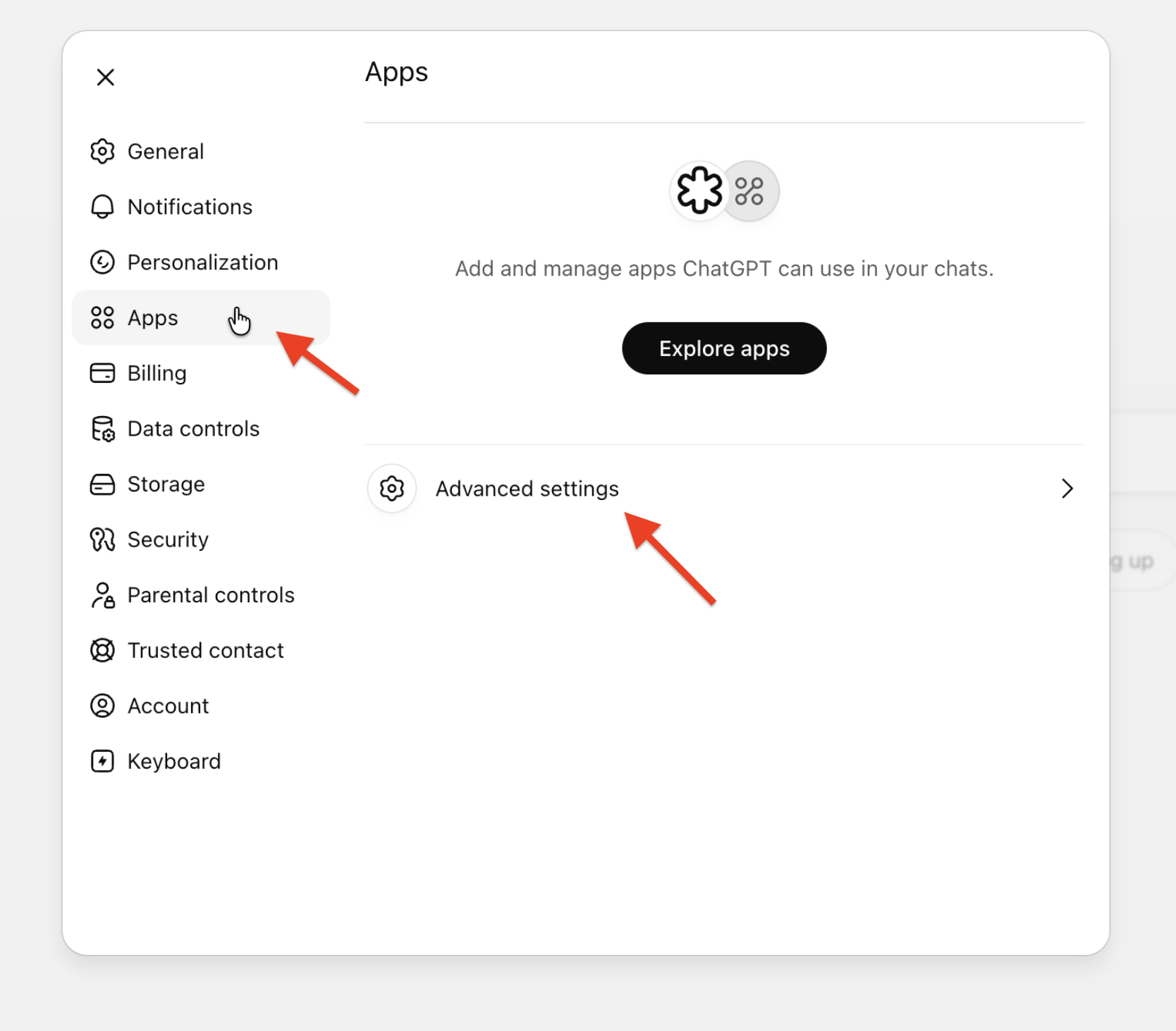
Click Apps in the left sidebar, then click Create app next to Advanced settings.
Step 3: Enable Developer Mode
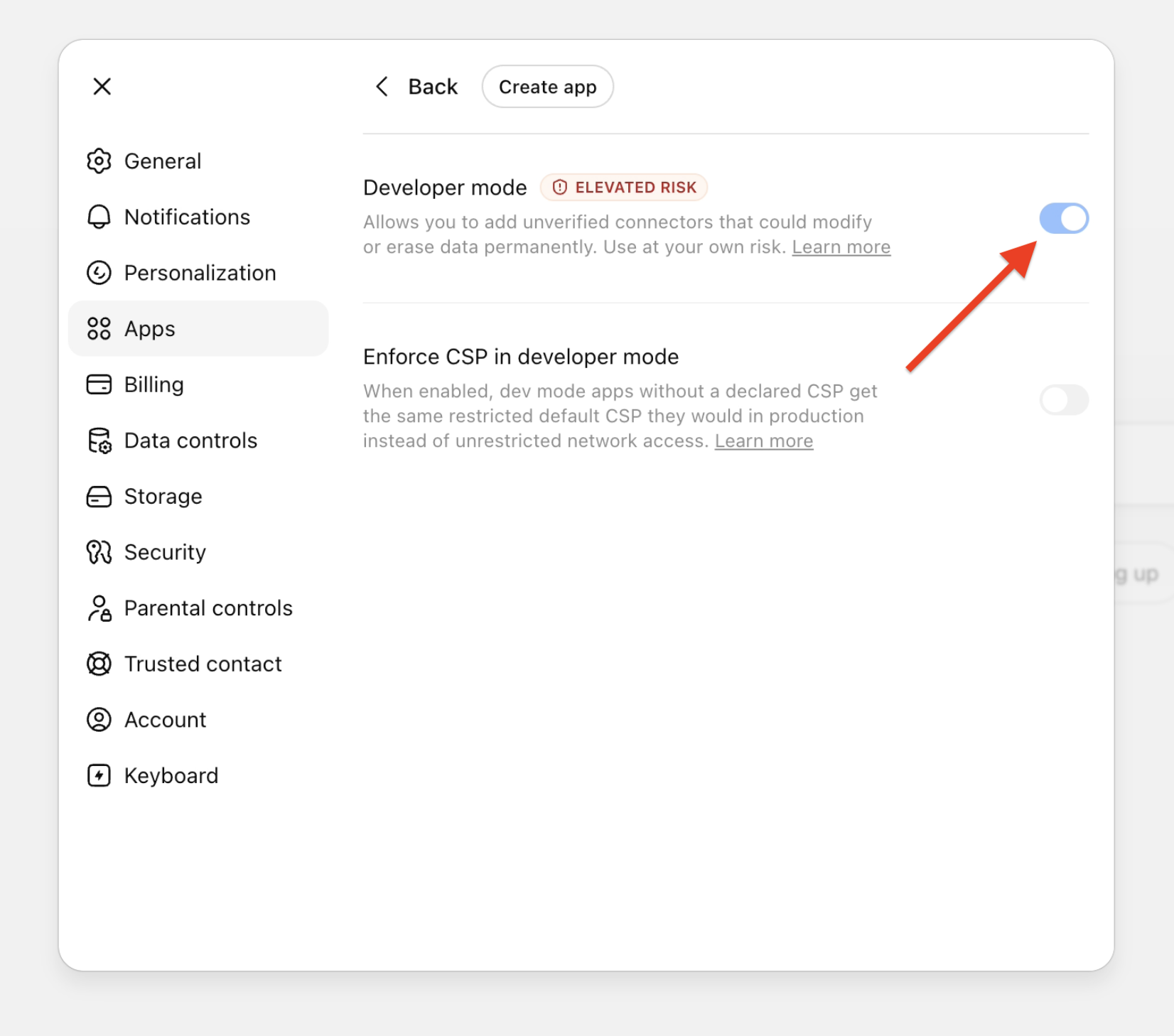
Toggle Developer mode to on.
Step 4: Open Advanced Settings
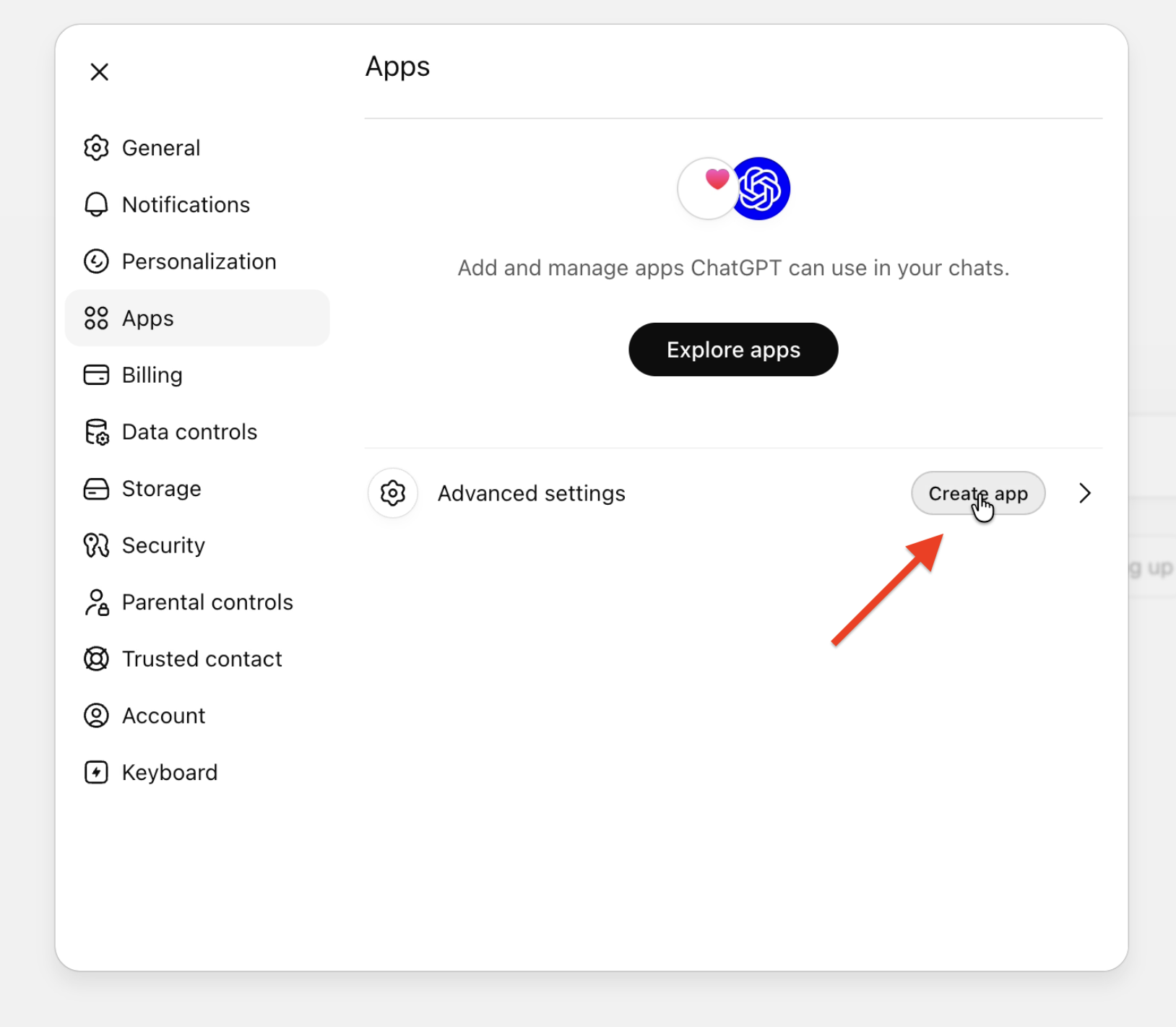
Go back to Apps in the left sidebar. Click Advanced settings.
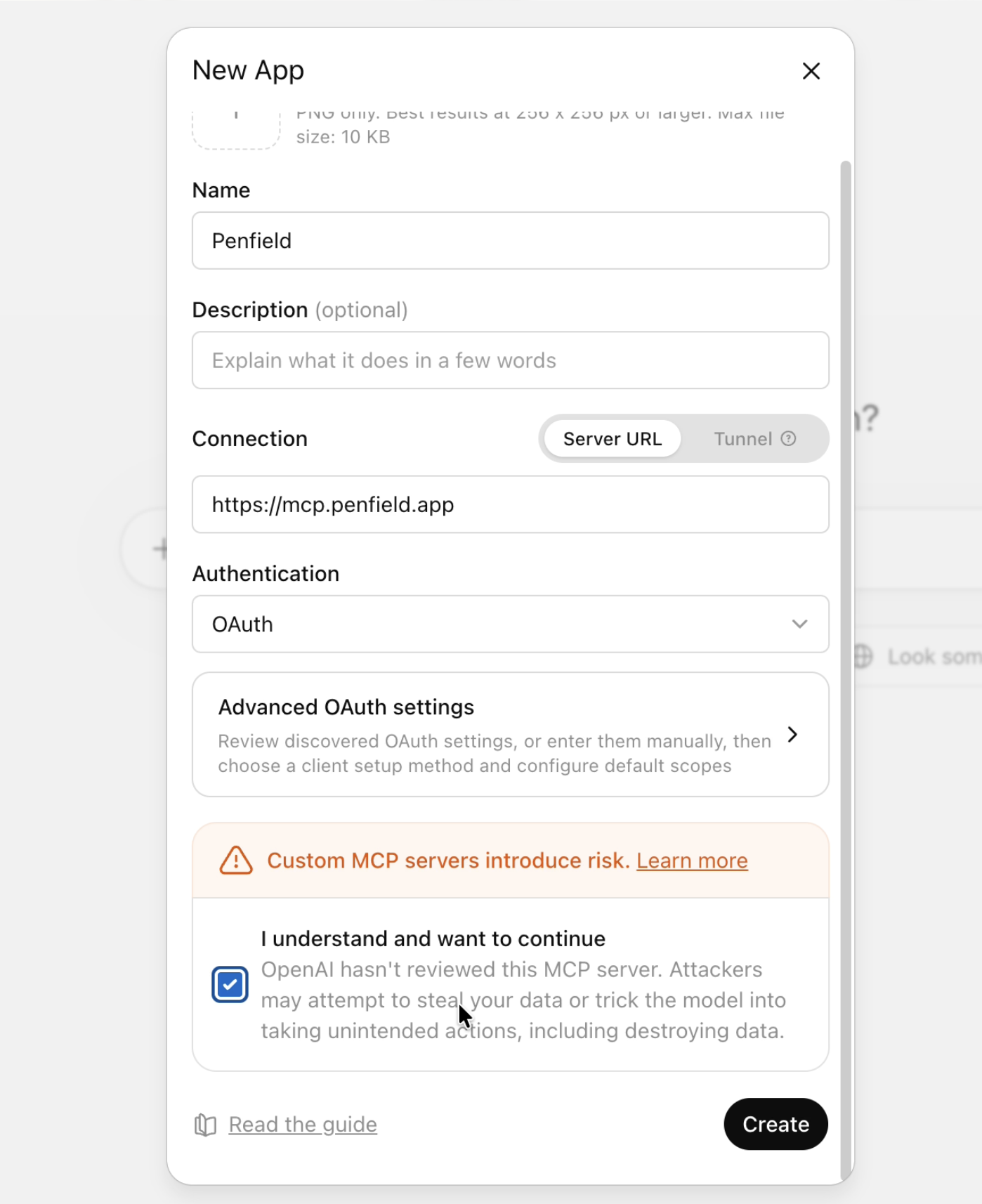
Step 5: Create the Penfield App
Fill in the New App form:
| Field | Value |
|---|---|
| Name | Penfield |
| Connection | Server URL |
| Server URL | https://mcp.penfield.app |
| Authentication | OAuth |
Check the "I understand and want to continue" box, then click Create.
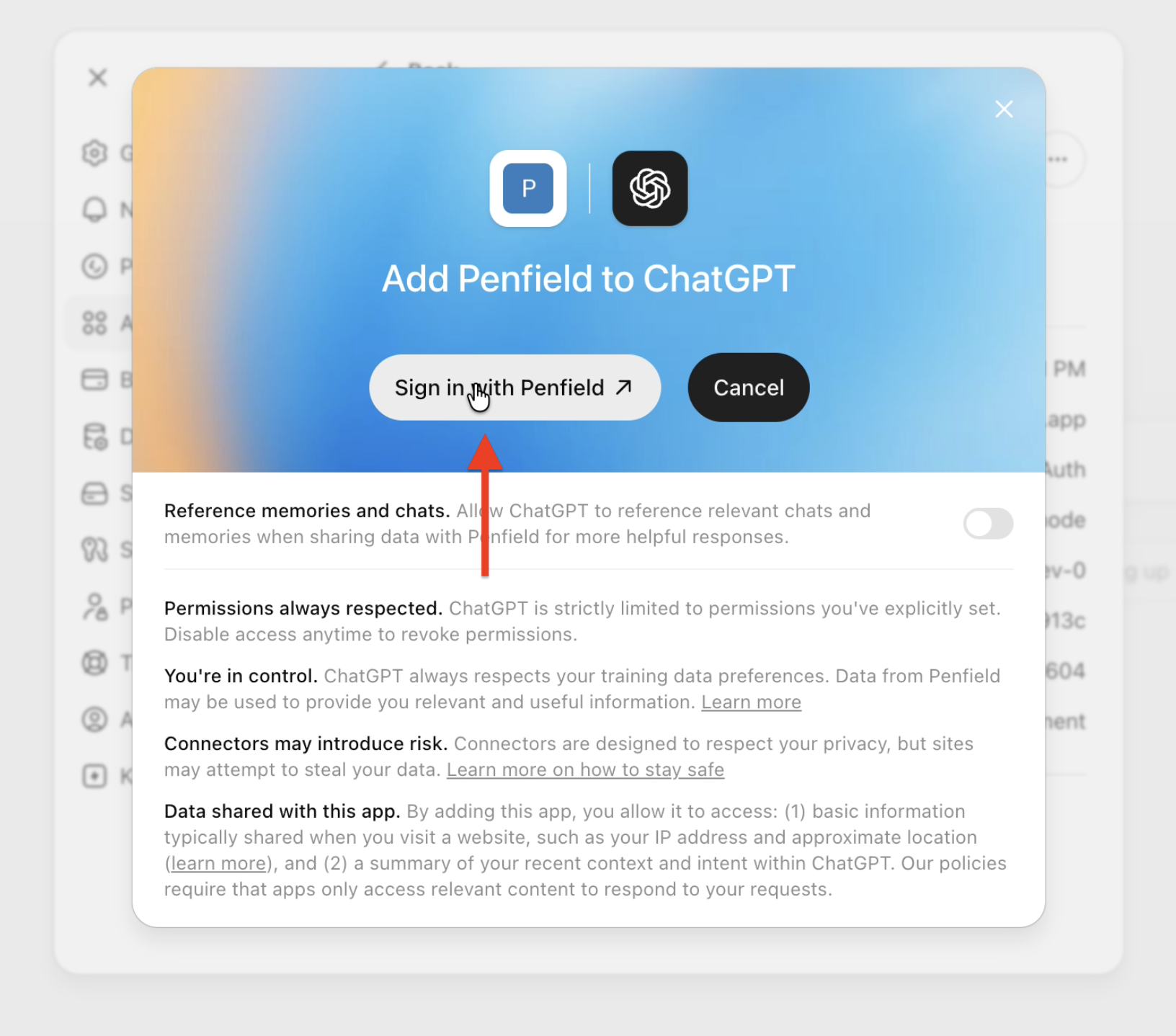
Step 6: Sign In with Penfield
Click Sign in with Penfield.
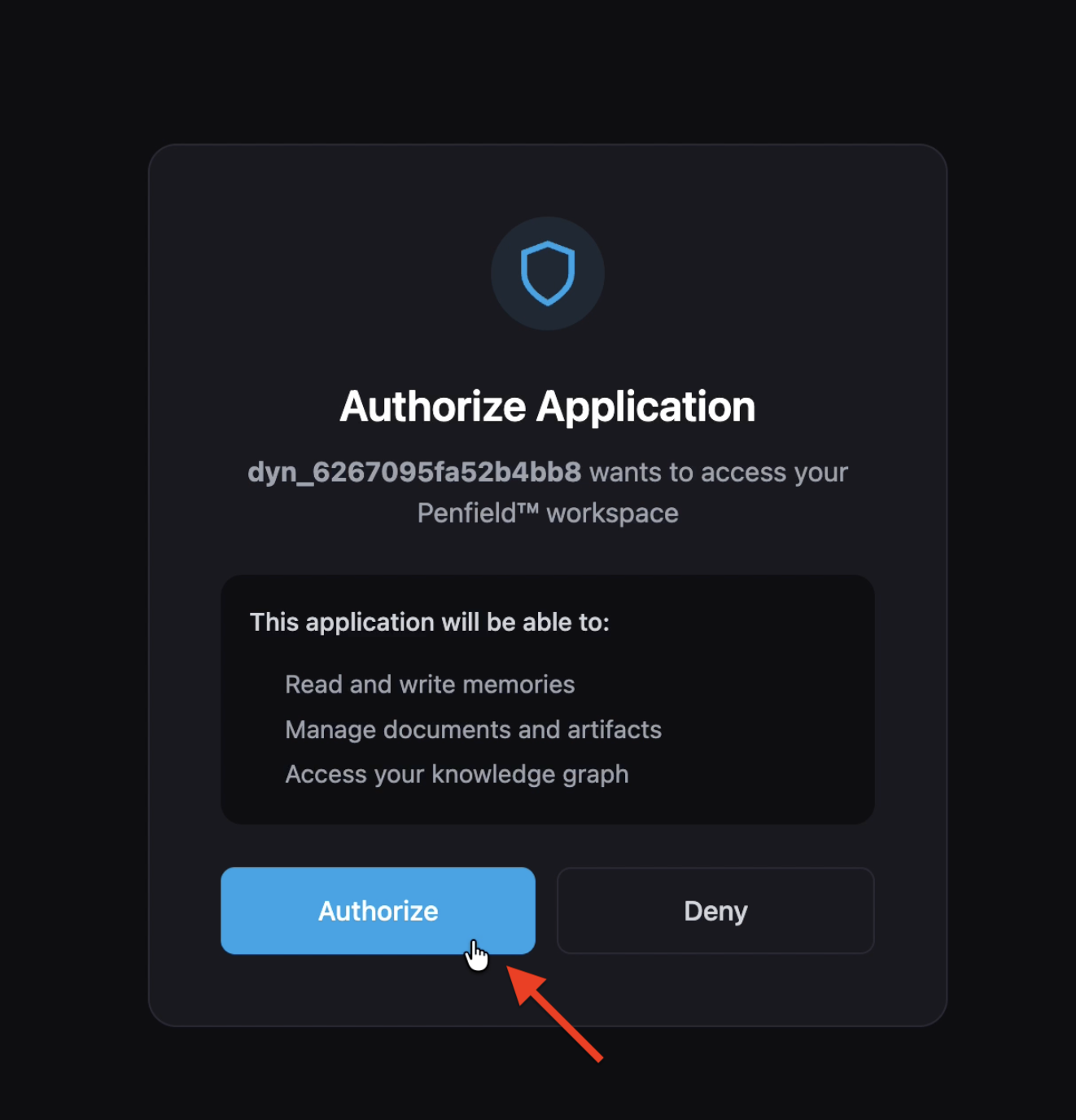
Step 7: Authorize the Connection
Click Authorize to connect your Penfield workspace to ChatGPT.
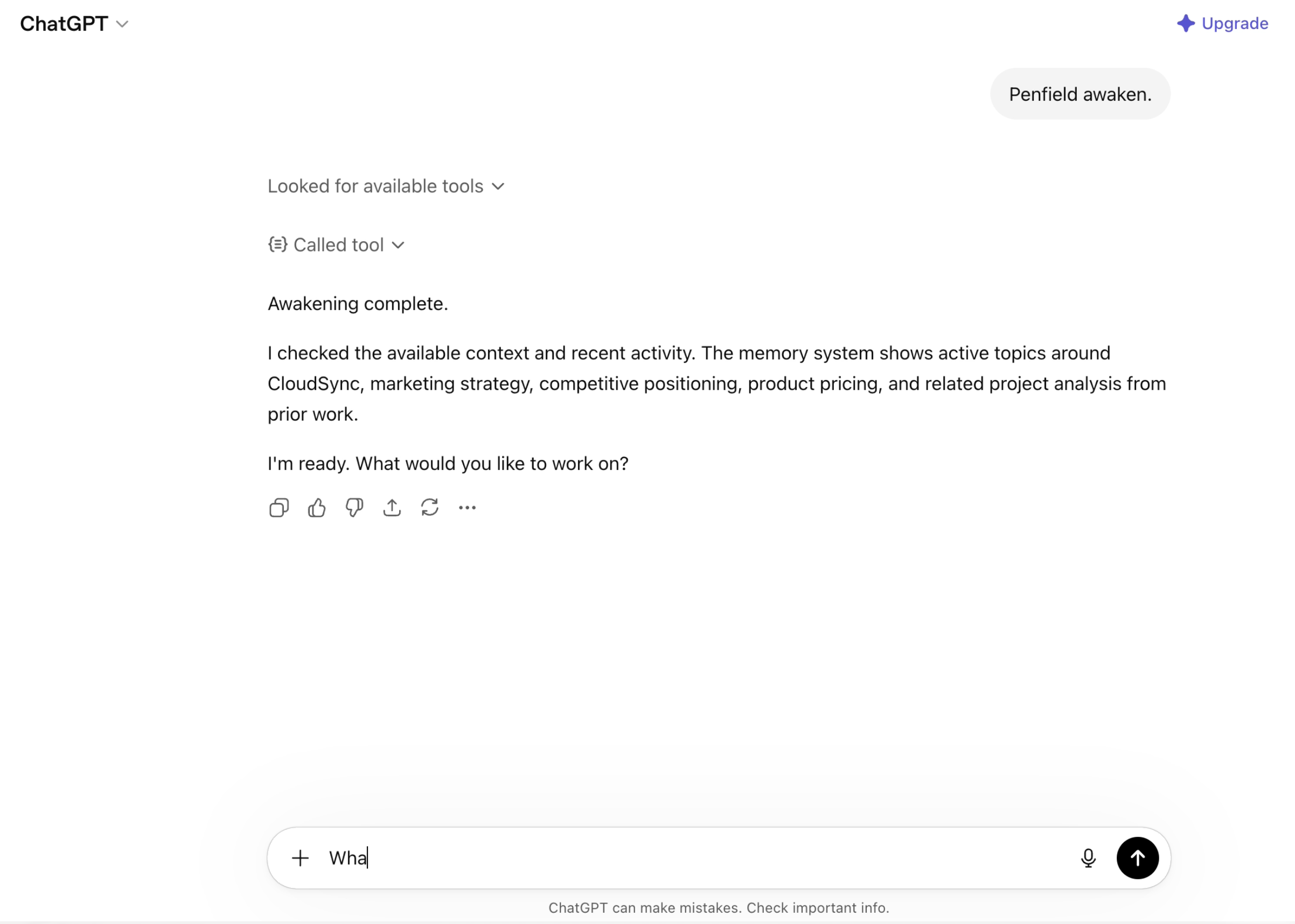
Step 8: Activate Your Assistant
Start a new conversation in ChatGPT and type:
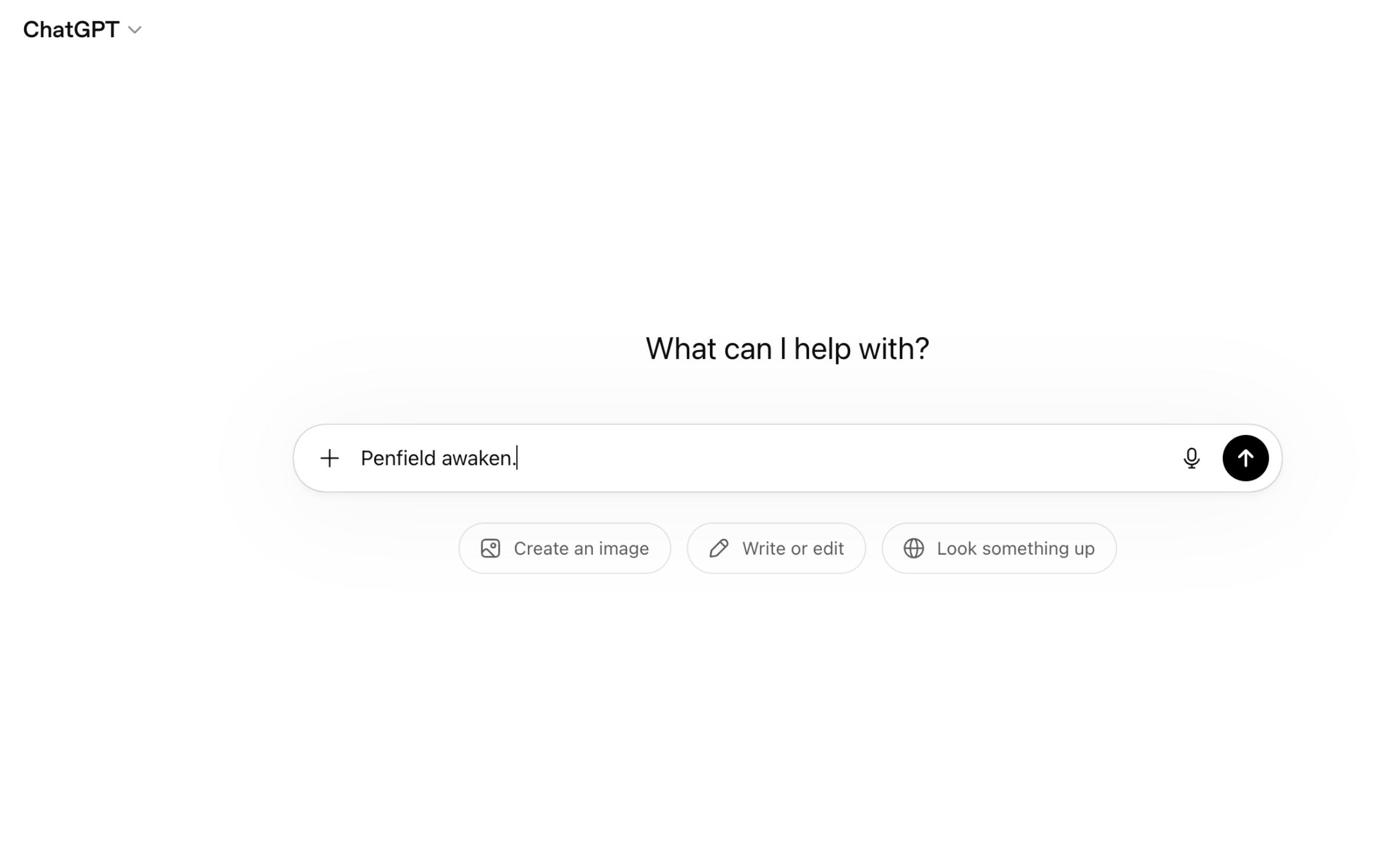
Penfield will load your personality configuration and respond with a personalized greeting.
Support
If you encounter issues, contact [email protected].